Parameters
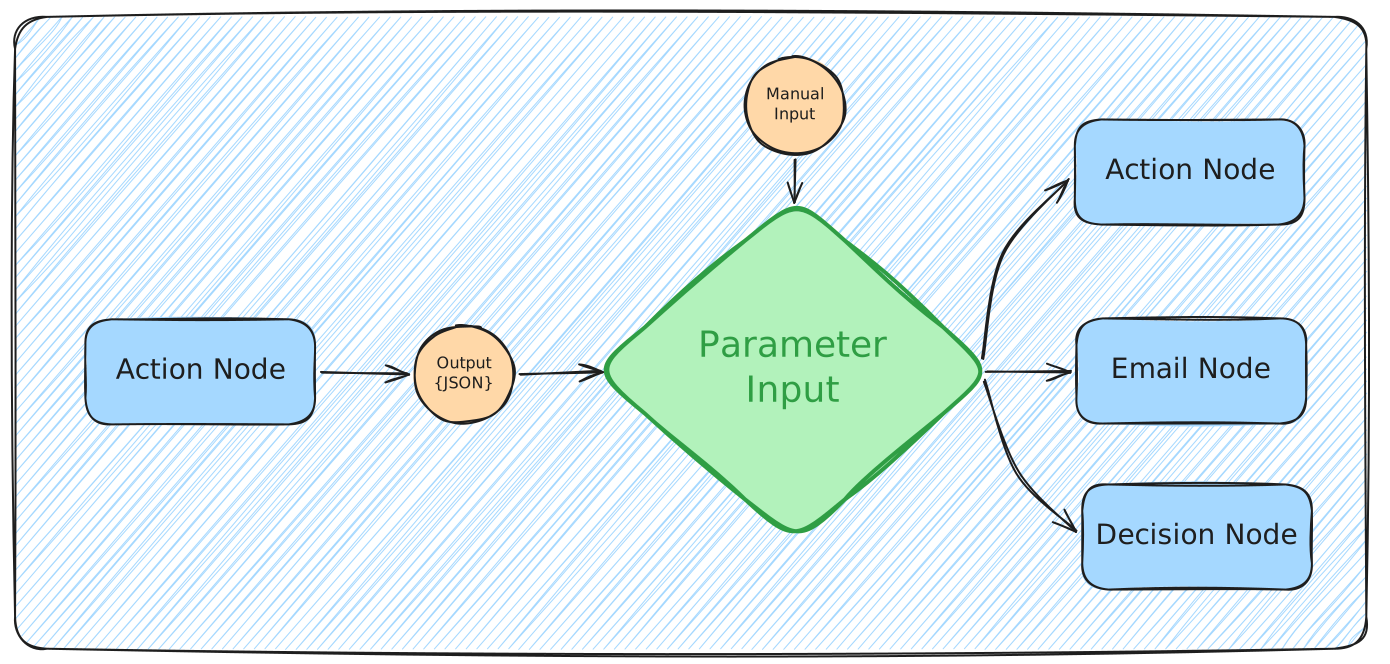
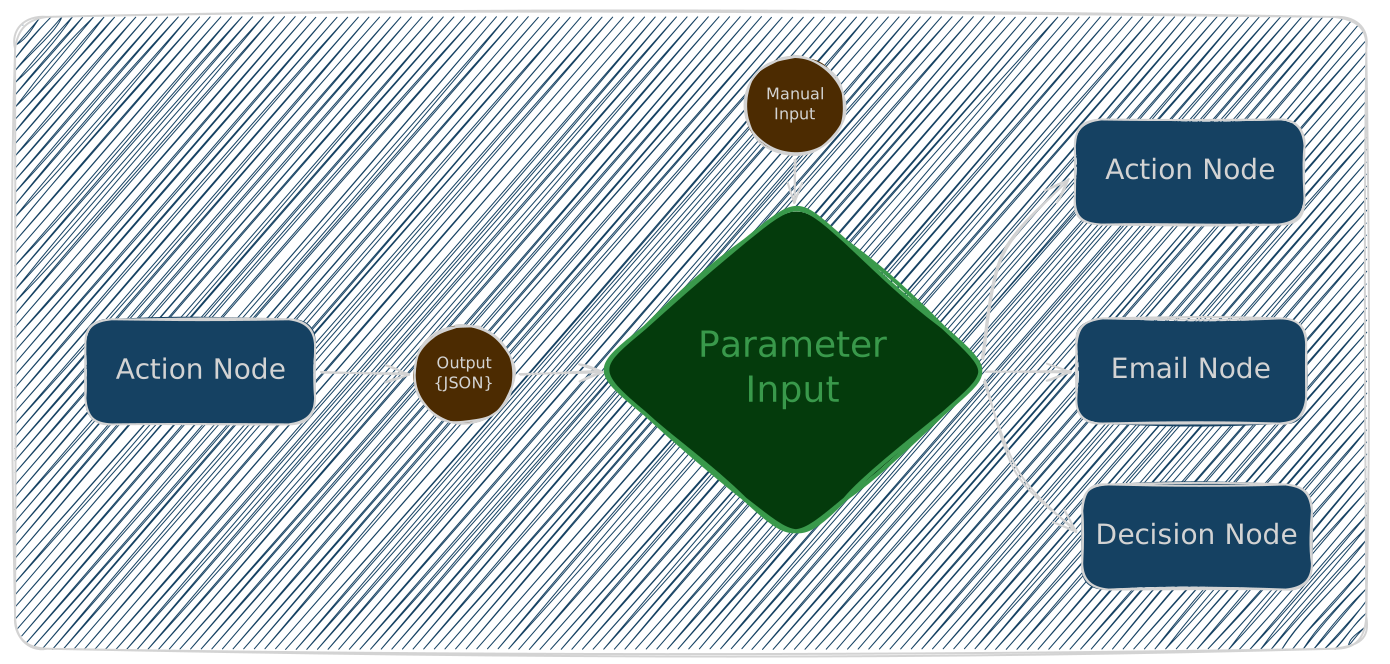
A parameter is a value that's supplied to a node at run time, rather than baked into the node's design. Parameters are how AutoSage workflows become reusable — the same Script node can deploy v1.2.0 on Monday and v1.3.0 on Friday by changing one input, without anyone editing the script.
They're also the glue between nodes. The output of an upstream Script node can flow into the input of a downstream one through a parameter, turning a sequence of independent steps into a workflow that actually passes data along.
Where parameters live
Parameters are declared per Action node. Each Script or Email node that needs runtime values defines its own list of parameters in its configuration sidebar. There's no global "workflow parameters" list and no parameters on the Trigger node — the Trigger is only one of several sources that supply values for parameters declared elsewhere.
Decision nodes don't declare parameters. A Decision references upstream outputs directly through its Field/Value picker, so it doesn't need the parameter machinery.
Anatomy of a parameter
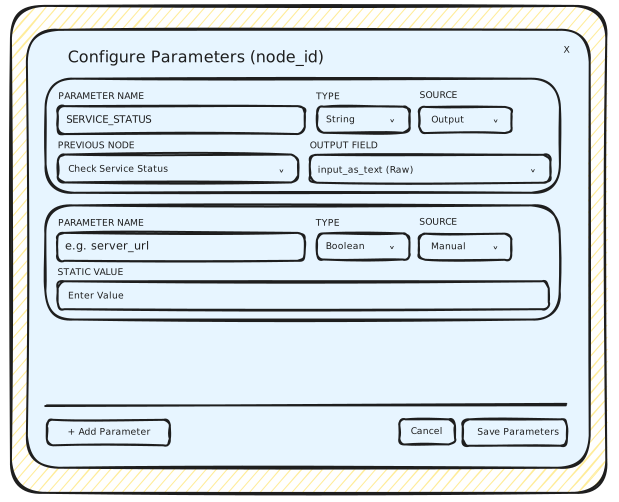
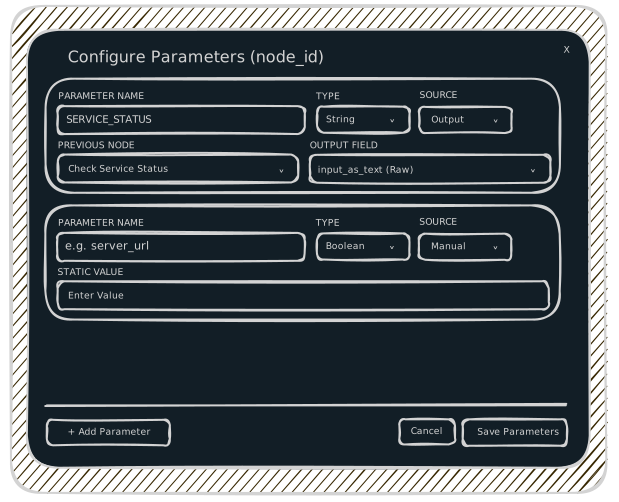
In the parameter configuration sidebar, every parameter has four fields:
- Name — a human-readable label you choose (e.g.,
release_tag,service_name). This is what you'll reference inside the script as{{release_tag}}. The match is case-insensitive, but the identifier itself must be the same — if your script reads{{service_name}}, the parameter Name can beservice_name,SERVICE_NAME, orService_Name, but it cannot besvc_nameorserviceName. - Type — one of String, Number, Boolean, or Password (see Parameter types).
- Source — either Output or Manual. This switches what appears next:
- Source = Output → two more fields show up: Previous Node and Output Field.
- Source = Manual → a single Default Value input box shows up instead.
- Either (Previous Node + Output Field) or Default Value, depending on the Source you picked (see Source: Output vs Manual).
Behind the scenes, AutoSage also assigns each parameter an auto-generated ID — opaque, stable, and used internally as the key in the HTTP webhook body's inputs object. You don't pick it and you generally don't see it. The Trigger Nodes page tells webhook callers to copy the whole inputs object from the configuration sidebar precisely so they never have to deal with these IDs by hand.
Parameter types
| Type | What it holds | Notes |
|---|---|---|
| String | A text value. | The most common type. Substituted into scripts as-is. |
| Number | A numeric value (integer or decimal). | Substituted as a bare number — 42, not "42". |
| Boolean | true or false. | Substituted as the literal true or false. |
| Password | A secret string (token, key, password). | Never substituted into the script source. Injected as an environment variable instead. |
Why Password is different
For String, Number, and Boolean parameters, AutoSage replaces the {{param_name}} token directly in the script source before execution. That's fast and predictable, but it means the value ends up inside the executed script text — and a careless echo or Write-Host would dump it to the run log.
For Password parameters, AutoSage does not template the value into the script. Instead, it injects the value as an environment variable named after the parameter (so a parameter named db_password becomes $env:DB_PASSWORD in PowerShell, $DB_PASSWORD in Shell). The script reads it from the environment at run time, and the value never appears in the script text or in logs unless you explicitly print it.
This means: do not write {{db_password}} for a Password parameter — that token won't be substituted. Read the environment variable instead.
Source: Output vs Manual
Every parameter's value comes from exactly one Source, picked when you declare the parameter:
Source = Output
Pick this when the parameter's value should come from an upstream node. Two more fields appear:
- Previous Node — a dropdown listing every node upstream of this one in the graph. Pick the one whose output you want to use.
- Output Field — once a node is picked, this dropdown shows the keys you can reference on that node:
- For a node with JSON Output, each declared field appears by name.
- For a node with Plain Text output (or as an option on JSON-output nodes too), pick
input_as_textto reference the whole captured response as a single string.
There is no "default" or fallback for an Output-sourced parameter. If the upstream node didn't produce the field you picked, the value is missing and the dependent node will fail when it tries to read it.
Source = Manual
Pick this when you want a literal value baked into the parameter's configuration. A single Default Value input box appears — type the value directly.
Despite the label, "Default Value" doesn't imply there's a separate "current value" alongside it. For a Manual-sourced parameter, the value you type is the value the script sees at run time, except when overridden by a webhook caller (see below).
Value resolution at run time
When the workflow runs, AutoSage resolves each parameter's value in this order:
- HTTP Webhook caller-supplied value — if the workflow was triggered via HTTP Webhook and the request body's
inputsobject contains an entry for this parameter's ID, that value wins. This applies to both Manual- and Output-sourced parameters. - The configured Source — otherwise:
- For Manual sources, the Default Value you typed is used.
- For Output sources, the value of the picked field on the picked upstream node is used.
- Missing — if neither of the above is available (e.g., an Output source whose upstream node didn't emit that field), the parameter is undefined and the node fails when it tries to use it.
For Output-sourced parameters, the inputs object in the webhook body shows the value as a reference placeholder like {node_id.output.json_key}. At run time, AutoSage looks for the literal placeholder and replaces it with the upstream node's value.
If a caller hand-edits the inputs body and accidentally replaces that placeholder with a static value, the webhook value takes precedence — and the parameter silently stops sourcing from the upstream node for that run.
This is precisely why the Trigger Nodes page tells callers to copy the entire inputs object from the configuration sidebar rather than reconstructing it by hand. The pre-populated object has the right placeholders in place; copying it preserves the Output-source wiring.
Scheduled runs and missing values
Job Scheduler triggers have no caller, so step 1 above never applies. Every parameter falls back to its configured Source — Manual values come from the Default Value field, Output values come from the upstream node. If your workflow is meant to run on a schedule, every Manual-sourced parameter needs a Default Value, and every Output-sourced parameter needs a reliable upstream — otherwise the dependent node will fail at run time.
Reading parameters from a script
Inside a Script node's script, you reference a parameter with {{param_name}} syntax:
# release_tag is a String parameter on this node
$tag = "{{release_tag}}"
Write-Host "Deploying $tag"
Before the script runs, AutoSage walks the script source and replaces every {{param_name}} token with the resolved value of the matching parameter on this node.
A few rules to keep in mind:
- Case-insensitive.
{{release_tag}},{{Release_Tag}}, and{{RELEASE_TAG}}all refer to the same parameter. - Same-node scope. A
{{param_name}}token only resolves against parameters declared on the same node. There is no syntax for{{other_node.field}}directly inside a script — if you want to use another node's output, declare a parameter on this node and source its value from that other node. - Password parameters are not templated. Read them from environment variables, not from a
{{…}}token. - Quote String tokens that contain spaces or special characters. Because the substitution is textual, the surrounding quoting in your script matters. The example above wraps
{{release_tag}}in double quotes so a value likev1.2.0 rc1doesn't trip up the shell.
Worked example
A node that declares three parameters — service_name (String), restart_attempts (Number), service_token (Password) — might contain a PowerShell script like:
$service = "{{service_name}}"
$maxRetries = {{restart_attempts}}

# Password parameter — read from env, not from a {{...}} token
$token = $env:SERVICE_TOKEN

for ($i = 1; $i -le $maxRetries; $i++) {
    Write-Host "Attempt $i: restarting $service"
    # ...use $token in your call here...
}
Note that {{restart_attempts}} isn't quoted — it's a Number, so it gets substituted as a bare numeric literal that PowerShell can use directly in the loop bound.
How parameters interact with each node type
A quick summary of where parameters show up across the other pages in this section:
- HTTP Webhook triggers — the request body's
inputsobject is the caller-supplied source. Each key ininputsis a parameter ID, not a parameter name. A caller-supplied value overrides whatever Source the parameter was configured with. - Job Scheduler triggers — no caller, so every parameter resolves against its configured Source: Manual params use the Default Value, Output params pull from the upstream node.
- Script nodes — declare parameters in the configuration sidebar; reference them with
{{param_name}}inside the script (or from$env:…for Passwords). - Email nodes — parameters are not inlined into the subject or body with
{{…}}. Instead, a parameter configured on the Email node appends its value (or the upstream node's full output, ifinput_as_text (Raw)is selected) to the email body automatically. - Decision nodes — don't declare parameters. Reference upstream outputs directly through the Field/Value picker, which has the same Manual/Output shape.