Editor Guide
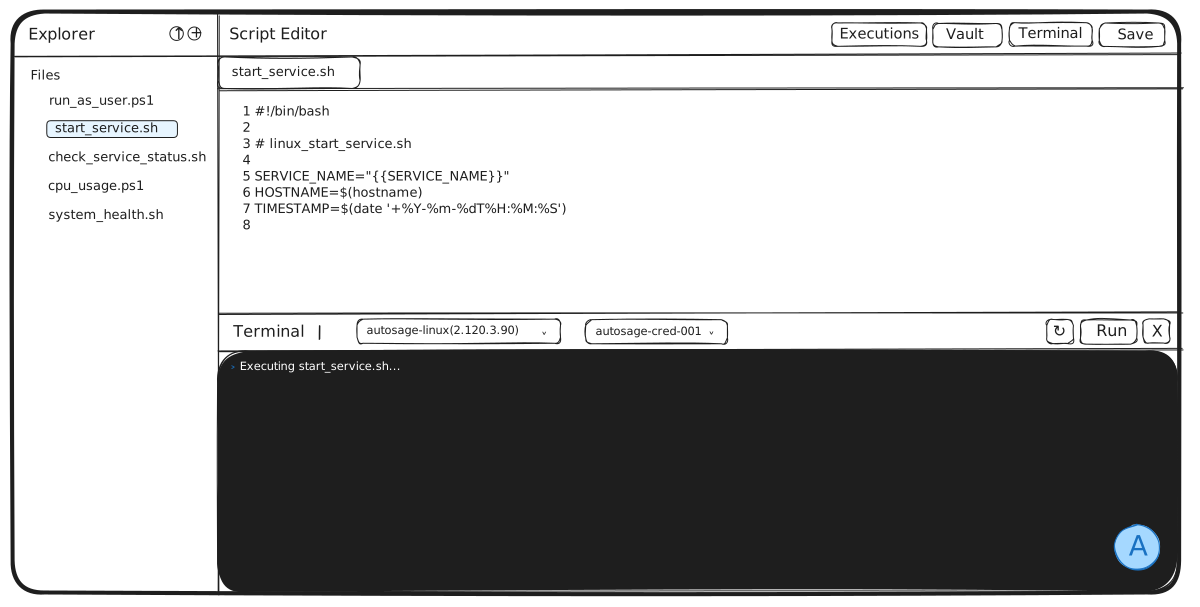
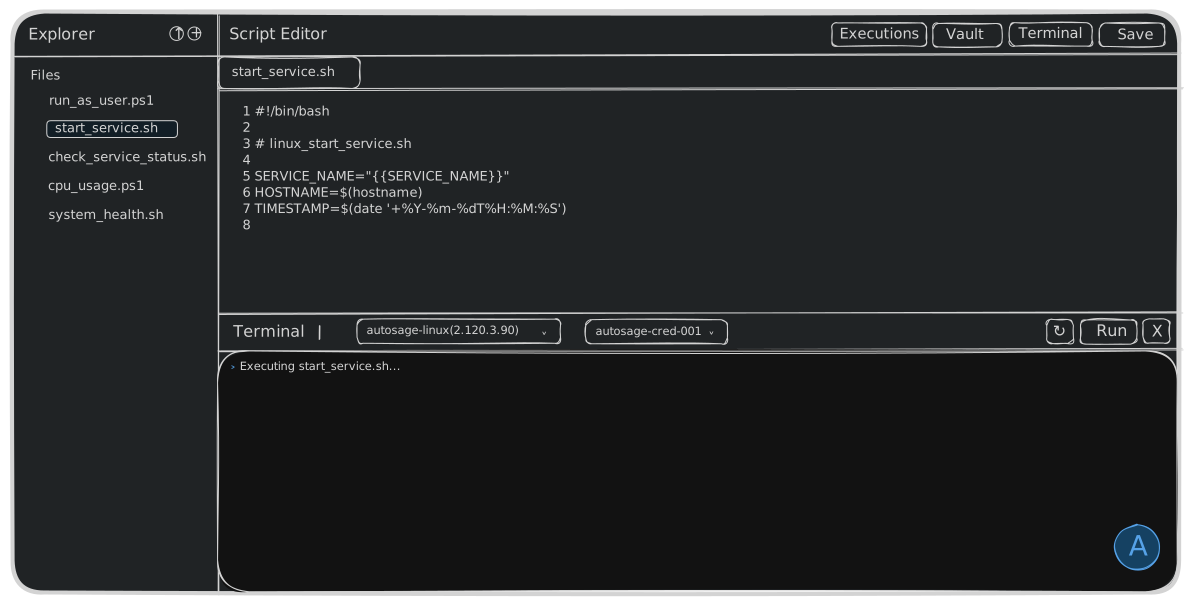
The Script Editor is where you write, view, and update the scripts your workflows run. It bundles everything you need to author a script and try it out — editing, file management, execution, AI assistance, and run history — into a single screen.
The five parts of the editor
The editor is made up of five parts:
- Editor — write, view, and update your script.
- File explorer — browse and manage your saved scripts.
- Execution terminal — run a script and watch its output live.
- Autobot script generator — generate a script from a natural-language prompt.
- Executions log viewer — review the history of past runs and their outputs.
Where to find each part
A few of these parts are toggled on demand rather than always visible:
- Terminal and Executions — buttons in the top-right corner of the editor open the execution terminal and the executions log viewer respectively.
- Autobot — button in the bottom-right corner opens the Autobot script generator.
The editor and file explorer are visible by default whenever you open the Script Editor.
Creating a new script
To create a new script, click the + File icon in the file explorer. An input box appears where you enter the script name — be sure to include the file extension.
Supported file types
You can create scripts in two languages today:
- PowerShell —
.ps1 - Shell —
.sh
Creating and executing Python scripts will be supported in an upcoming version of AutoSage.
What you get on creation
When the new file is created, AutoSage pre-fills it with:
- A couple of default code lines to get you started.
- Instructions on how to handle parameters.
These are commented lines — feel free to ignore them and start writing your script directly, or use them as a reference.
AutoSage doesn't auto-save. Saving the script is your responsibility — remember to save before leaving the editor or running the script.
Using parameters in your script
Scripts in AutoSage almost always need runtime values — a service name, a version tag, a credential — supplied by the workflow that runs them. These are called parameters, and they're declared on the Action node that runs the script.
The starter comments in a newly created file already include a brief reminder of the syntax. Here are the basics:
{{param_name}} token syntax
Inside your script, reference a parameter by wrapping its name in double curly braces:
$tag = "{{release_tag}}"
Write-Host "Deploying $tag"
Before the script runs, AutoSage walks the script and replaces every {{param_name}} token with the parameter's resolved value. The match is case-insensitive — {{release_tag}}, {{Release_Tag}}, and {{RELEASE_TAG}} all refer to the same parameter.
Quote String tokens that may contain spaces or special characters; leave Number and Boolean tokens unquoted so they substitute as bare literals.
Password parameters are different
Parameters of type Password (tokens, API keys, passwords) are never substituted into the script source. Writing {{db_password}} for a Password parameter will leave the literal {{db_password}} in your script — not its value.
Instead, AutoSage injects the value as an environment variable named after the parameter. Read it from the environment at run time:
# PowerShell — parameter named db_password
$pwd = $env:DB_PASSWORD
# Shell — parameter named db_password
PWD="$DB_PASSWORD"
This keeps the secret out of the executed script text and out of run logs (unless you explicitly print it).
For the full picture — parameter types, value sources, scheduled-run behavior — see the Parameters page.
Upload a script
If you already have a script on disk, you can bring it straight into AutoSage instead of creating a new file and pasting its contents.
The upload button sits just to the left of the + File icon in the file explorer. Click it to pick a script from your computer.
A few things to know:
- One script at a time. Each upload accepts a single file — there's no bulk upload.
.ps1and.shonly. Same supported extensions as new-script creation.- Auto-saved on upload. Unlike a manually created script, an uploaded script is persisted immediately — no extra save step. You can start using it right away.